


Support for Adept Tools
On this page you can find plenty of Help & Support for Adept Tools including:
Installation | Inserting Licences | Connecting to Sage Data | Setting Up a Sage User
Upgrading & Updating | Downloading Again | Software Registration
Sage 50 & 50cloud Installation Support for Adept Tools
Important Notes about Windows 10 & 11 for how to Update or Install Adept Add-Ons
- All of our Adept Sage 50 Add-Ons will run on Windows 10 & Windows 11.
- If you decide to upgrade any of your computers to Windows 10 & 11 you should upgrade your Adept Add-Ons to the latest version first.
- To use your Adept Add-Ons Check for Updates feature on Windows 10 & 11 you must run the Add-On from the Start>All Apps>Adept Tools menu. Right click the menu entry and select “Run as administrator” or “More>Run as Administrator” from the small sub menu that pops-up. For day to day use of our Add-Ons you can continue to run them from the buttons that they place on the Sage tool bars.
- If you discover any issues with using Sage 50 & 50cloud or any of our Adept Add-Ons on Windows 10 & 11 please let us know. Email support@adepttools.co.uk.



How to Install and insert the Trial Licence for your Adept Tool
How to Web Update your Adept Add-On Tool from inside the software
How to Insert Licence, Connect & Setup a User for your Adept Tool
Sage have changed the way they deal with User Accounts in v28 and above. Please visit our Adept Add-On FAQs Page for more information.
How to setup a New User in Sage 50 for your Adept Add-On Tools
Sage have changed the way they deal with User Accounts in v28 and above. Please visit our Adept Add-On FAQs Page for more information.
How To Video Tutorials for Adept CSV Tools
How to create a CSV Template from Menu>Fields.
How to import a CSV File & Basic Options.
How to setup and configure Automatic Importing.
How to Export a CSV File of Sage Data.
Check that your Sage 50 or 50cloud program is up to date
Important Note for Old Sage Line 50 & Sage 50 v12 to v20 users
Sage will have released important updates for your version so you should always ensure that you keep your Sage software up to date. There’s often multiple Hotfixes or Service Packs and these can be critical for the performance of your Sage Accounts software. The updates can be downloaded from Sage’s Updates Page, some older versions may not be available. If you have not installed a vital update you may receive an error message similar to “Your Sage SDO is v20.x.x.x and needs to be updated to v20.0.3.297 by installing Service Pack 1”, for more info please click here.
Important Note for New Sage 50 (v21+) & 50cloud (v25+) users
Sage release important updates for the SDO in their Automatic Updates so you should always ensure that you keep your Sage software up to date. To check whether an update is available simply go to the Help menu option in New Sage 50 and select Check for Updates. The updates can also be downloaded from Sage’s Updates Page. If you have not installed a vital update you may receive an error message similar to “Your Sage SDO is v21.x.x.x and needs to be updated to v21.0.3.297 by installing Update 1”.
Support for Adept Tools
I want to install my Add-On on a new computer. How can I obtain the latest file?
Click here and enter the Serial Number from your licence details when asked. You will be shown the current version number of your Add-On. Click on this version number to download the install file.
How do I buy a New Sage 50 v21+ licence upgrade for my Adept Add-On ?
If you are in the UK or Ireland click here for information about the European licence upgrade procedure.
If you are in Australia or New Zealand click here for information about the ANZ licence upgrade procedure.
How do I buy a 2014 licence upgrade for my Adept Add-On ?
If you are in the UK or Ireland click here for information about the European licence upgrade procedure.
If you are in Australia or New Zealand click here for information about the ANZ licence upgrade procedure.
Check that your Adept Add-On is up to date
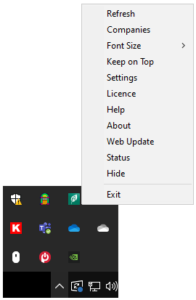
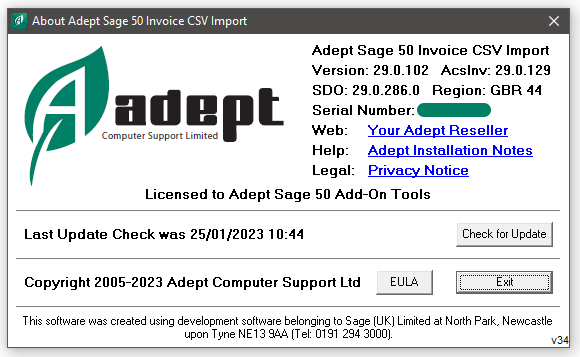
All v16 and higher Adept Add-Ons for Sage 50 & 50cloud now include the ability to Check for Updates over the Internet. On most of our programs you can perform this check by pressing the button on the About Dialog. If an update is found it will be downloaded and installed automatically, Windows 10 users must run the Tool from Start>All Apps>Adept Tools by right clicking and selecting “Run as Administrator or More>Run as Administrator”.
You should always Check for Updates before upgrading to a new version of Sage 50 or 50cloud.
If you get a message that the updater is unable to connect to the server you should try again later. If you still can’t connect it may be that access is being blocked by your Fire Wall, in this case please contact your IT Support.
With our Adept Viewers the option to Check for Updates can be found on the Right Click Menu.
Download the Latest Version of one of our Add-Ons
If the download link in your licence email no longer works please click here to get the latest link. You will need your Adept Tools Serial Number from your licence details.
Support for Adept Tools
Entering your Adept Licence Details
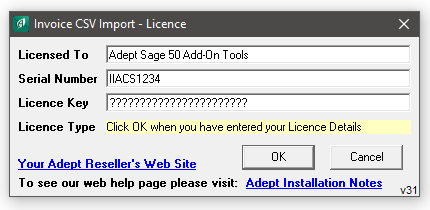
Your Adept Licence Details must be entered exactly as they are shown in your licence email. It is essential that you get the capitalisation, punctuation, spelling and spacing identical to your email in all three white boxes or the licence will not be accepted.
You do not need to enter anything in the fourth yellow box as this is where an error message will be displayed if you get the licence details wrong.
What to do if your Sage data is not in the default location
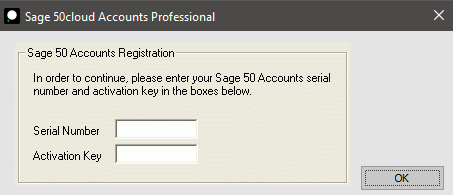
If the following message is displayed it means that the licence details for you main Sage 50 program can’t be found. This is usually because your Sage data has not been installed in it’s default location.
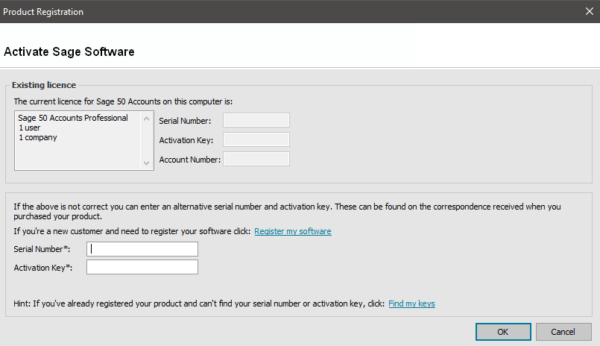
To stop this message appearing with Sage versions 14 (2008) onwards
You need to copy SAGE.USR from your Sage Settings folder to the Company folder that holds the Sage Data you are accessing.
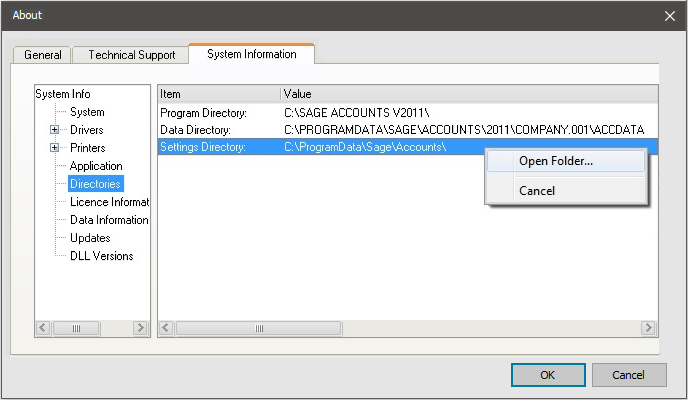
In Sage select the menu option Help / About / System Information Tab.
In the left hand panel click on Directories.
In the right hand panel right click the Settings Directory entry and select Open Folder form the menu that appears.
Double click on the folder that matches your version of Sage.
For example, if you have Sage 50 2009 double click the folder named 2009.
You will find the sage.usr file in this folder.
N.B. On some computers the .usr file extension may be hidden.
Copy this file to the COMPANY.nnn folder that holds your Sage data where nnn is a 3 digit number.
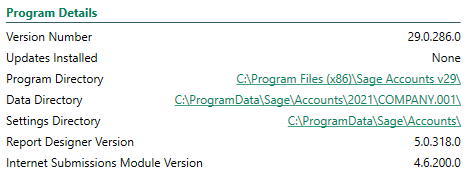
On the latest versions of Sage 50 Accounts select the menu option Help / About.
In the Program Details section click on the Settings Directory link.
Double click on the folder that matches your version of Sage.
For example, if you have Sage 50 2023 double click the folder named 2023.
You will find the sage.usr file in this folder.
N.B. On some computers the .usr file extension may be hidden.
Copy this file to the COMPANY.nnn folder that holds your Sage data where nnn is a 3 digit number.
To stop this message appearing with Sage versions 13 (2007) and earlier
You need to copy SAGE.USR from your Sage Program folder to the Company folder that holds the Sage Data you are accessing.
The sage.usr file can be found in your Sage Program folder.
By default this will normally be C:\Program Files\Sage\Accounts.
Copy this file to the folder that holds your Sage data.
N.B. this is the folder that contains the folder ACCDATA and MEMO etc.
Support for Adept Tools
Upgrading your Adept Add-Ons for a new version of Sage 50 or 50cloud
Ideally you should upgrade your Adept Add-Ons to the latest version before you upgrade Sage. All our Add-Ons are backwards compatible so it will continue to work with your old version of Sage.
To install the latest version of your Adept Add-On, ensure that you are an elevated Windows Administrator and click the “Check for Updates” button on the Adept Add-Ons About Dialog. If there is a new version of the Add-On available it will be downloaded and installed. Please note that for our Adept Viewer programs the check for updates feature is activated by selecting “Web Update” on the viewer’s menu.
Alternatively Visit the Adept Tools Downloads Page and enter the serial number of your Adept Add-On. You will be shown the current version of the software. Click the version number on this web page to download the latest installation file for your Add-Ons.
Important Notes about Windows 10 & 11.
- All of our Adept Sage 50 Add-Ons will run on Windows 10 & Windows 11.
- If you decide to upgrade any of your computers to Windows 10 & 11 you should upgrade your Adept Add-Ons to the latest version first.
- To use your Adept Add-Ons Check for Updates feature on Windows 10 & 11 you must run the Add-On from the Start>All Apps>Adept Tools menu. Right click the menu entry and select “Run as administrator” or “More>Run as Administrator” from the small sub menu that pops-up. For day to day use of our Add-Ons you can continue to run them from the buttons that they place on the Sage tool bars.
- If you discover any issues with using Sage 50 & 50cloud or any of our Adept Add-Ons on Windows 10 & 11 please let us know. Email support@adepttools.co.uk

When you connect to a new version of Sage or run the Adept Tool for the first time in a new month, you may be prompted to purchase a Reactivation or Annual Renewal for your Add-Ons licence.
| Sage Versions | UK | Australia | New Zealand | |
|---|---|---|---|---|
| Sage 50 2014 v20 and below
Sage 50cloud 2015 v21+ and above |
GBP 20% of the Tools RRP eg: £180 RRP = £36+VAT eg: £360 RRP = £72+VAT eg: £720 RRP = £144+VAT |
AUD 20% of the Tools RRP eg: $360 RRP = $72 eg: $720 RRP = $144 eg: $1440 RRP = $288 |
NZD 20% of the Tools RRP eg: $396 RRP = $79.20 eg: $792 RRP = $158.40 eg: $1584 RRP = $316.80 |
|
|
Prices are per Adept Add-On and include VAT where applicable. |
||||
Support for Adept Tools
Adept Annual Licence Fees
In order to keep your Adept Add-On up to date with changes that Sage are continually making to their software our licences need to be reactivated once a year by paying an Annual Licence Renewal fee.
- Currently the price of Adept Annual Licence Fees Renewal is 20% of the RRP of the Tool, per Adept Add-On per year.
- Your first Annual Renewal Fee will be due one year from the Full Licence purchase date.
- Annual Renewal Fee dates are rounded to the end of the month that they fall in.
- During the renewal month your Add-On will show a blue light bulb to warn you that the renewal is due.
- The blue light bulb feature is dependant on the version of your Adept Add-On (as shown in its About Dialog) being at least v22.x.x.
- You can renew at any time during the renewal month by going to the Licence Dialog in your Add-On and clicking the Buy Now button.
- Once the renewal month has been passed your Add-On will automatically show its Licence Dialog and not proceed any further until the Renewal Fee is paid.
- When you pay an Annual Renewal Fee the system will add one year to the current annual renewal date.
- If you pay the Annual Renewal Fee over a year late you will be charged double the current Annual Renewal Fee to reactivate your licence. In this situation the annual expiry date will be set to one year from the date that you pay the double renewal fee.
- Please note that providing your Adept Add-On’s licence is valid for New Sage 50 v21 there is no additional fee if you upgrade to Sage 50 v22 or higher.
- If you use your Adept Add-On with Old Sage 50 v20 or earlier then Annual Renewal fees will not be collected until you decide to upgrade to a newer version of Sage 50
- If you upgrade your Sage 50 software from v20 or earlier to v21 or higher then you may have to immediately pay a single or double annual licence fee depending on how old your original Adept licence is

How to purchase an Annual Licence Renewal for your Adept Add-Ons.

Annual Licence Fee Renewal Support for Adept Tools
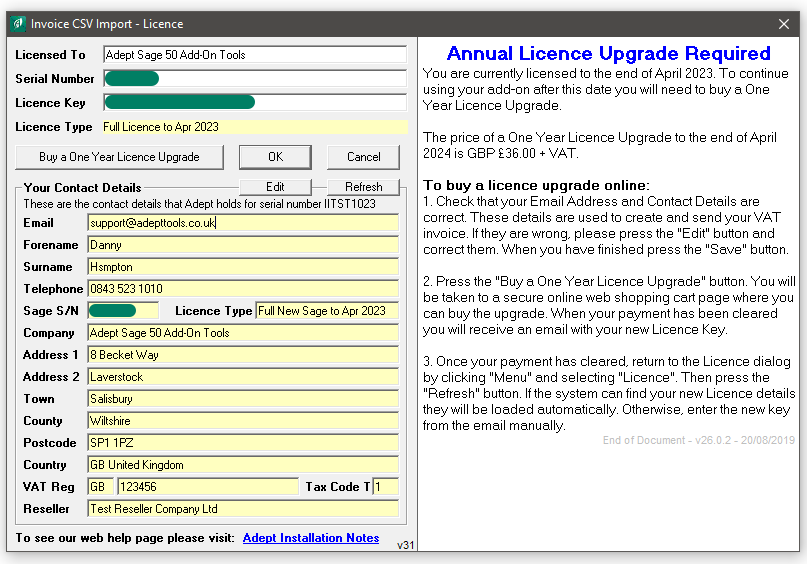
Check that your contact details are correct. If they are not, click the Edit button and correct them accordingly.
When you edit your details the Edit button changes to Save and the Refresh button changes to Cancel so that you can chose whether to save or abandon any changes that you makes. Fields that you change are highlighted pink. Why do we need this information ?
- Email, Forename and Surname are used to send you an email with your new licence and a VAT invoice for your records.
- Telephone is in case we need to contact you because the email with your new licence and invoice has bounced.
- Trial licences and Full licences are locked to your Sage serial number as an anti-piracy measure.
- Company name and address are used on your VAT invoice.
- VAT Reg is only required if you are in an EC country other than the UK. It will be verified against the VIES database and if valid we will be able to zero rate the sale.
- You can’t change Tax Code yourself. For intra EC sales it will change to 22 when your VAT Reg has been verified.
- Reseller is the name of the Adept Reseller who sold you this software.
The following screen shot shows a v21+ Annual Renewal.
You don’t need to have a PayPal account
To buy the Licence upgrade click on the Buy a One Year Licence Upgrade.
Your Internet browser will be started and you will be taken to a shopping cart page where you can pay for the upgrade using any standard Debit, Credit Card or a PayPal account.
You don’t need a PayPal account! The first screen you will see asks you to “Log in to PayPal” by entering an email address, but it’s actually just asking for your email address so it can send you a receipt for the payment. To proceed, enter your email address and select “Next”.
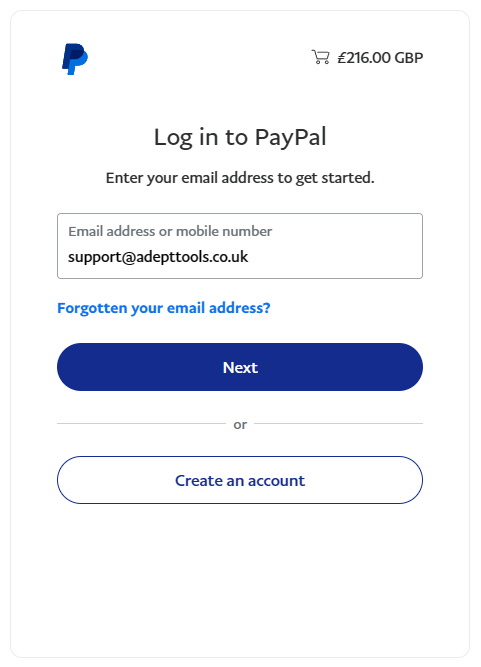
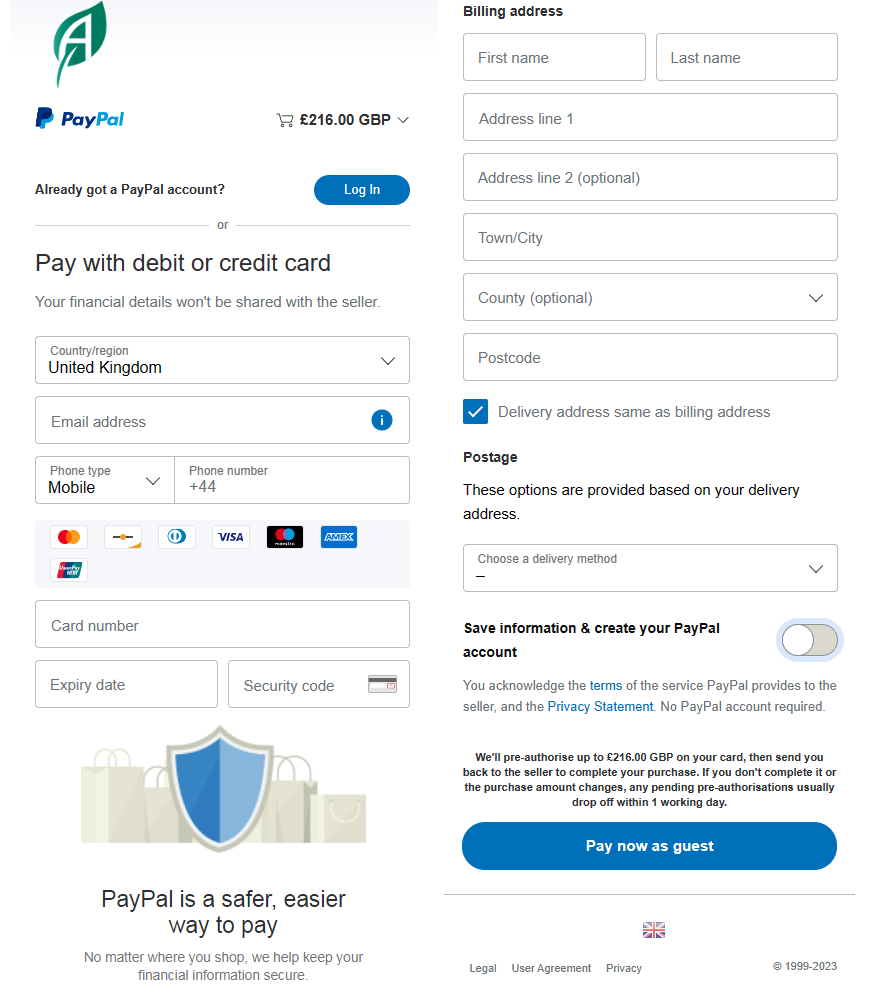
This is where you can “Pay now as Guest” by following these instructions based on the screen shot below.
You are now on the Payment page where you can still login to PayPal if required by selecting “Log In” next to “Already got a PayPal account?” or you can check out as a Guest using your Debit or Credit Card.
To proceed without creating a PayPal account, click to slide off the option “Save information & create your PayPal account”. Next you will need to enter your Debit or Credit Card information and your Billing address, then you can click “Pay Now as Guest” without creating a PayPal account.
After you have successfully paid for the upgrade return to the Add-Ons Licence Dialog and click Refresh.
Your details will be re-read from the Adept licence server and if the new licence is found it will be loaded automatically.
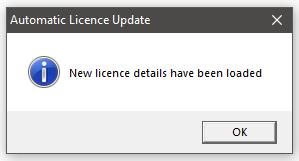
If for any reason this doesn’t work you will also receive an email with a new licence key that you can enter manually.
If PayPal is not working for you or not accepting your Card details please see below.
On rare occasions PayPal may not accept your Card details and fail to complete the payment, if this happens please email accounts@adepttools.co.uk and we will send you a payment link using our secondary provider Stripe.

When your Stripe payment has completed, we will issue your new Licence and VAT Invoice manually.
